Reset the beacon and re-join the LoRaWAN network
The beacon is a LoRaWAN® OTAA device: it must send a join request and receive a join accept before it can communicate.
You may want to force a new join, for example to move a beacon to another network, or reset it while troubleshooting. Four methods are available. The first two keep the casing closed.
| Method | Casing | Keeps configuration |
|---|---|---|
| LoRaWAN downlink | Closed | Your choice |
| Magnet | Closed | Yes |
| CLI over USB | Open | Yes |
| Abeeway Updater | Open | No (factory defaults) |
Never open the casing in a hazardous area. Methods that need the USB port must be performed in a safe zone.
Resetting the beacon with a LoRaWAN downlink
Send one of the following downlinks on LoRaWAN port 2 (see Debug commands):
| Downlink | Effect |
|---|---|
ff010100 | Reset, keep the current configuration |
ff010101 | Reset and revert to the configuration file flashed in the beacon |
ff010102 | Same as above, and also remove the Bluetooth bond |
Resetting the beacon with the magnet
When the beacon is running, the magnet sequence resets it only if reed_switch_configuration is set to 1. With the default value (3), the sequence starts BLE connectivity advertising instead.
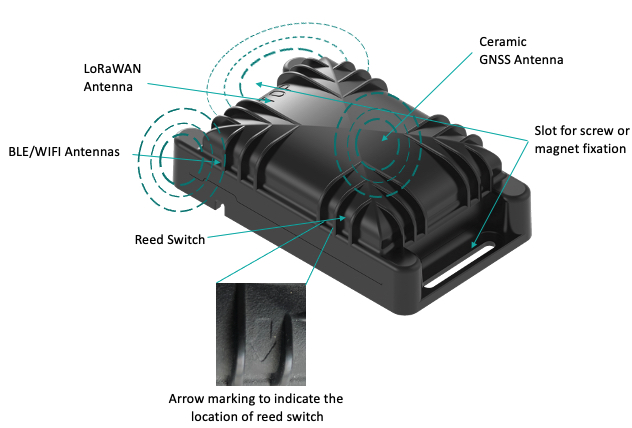
The beacon has no button. It is controlled with a magnet placed next to the arrow engraved on the casing, which activates an internal reed switch.
Precautions
- Do not attempt the sequence close to strong magnetic fields (for example magnetic mounts).
- Use a strong enough magnet and know where its poles are. A magnet tested with the reed switch is available on ThingPark Market.
- Always start with the magnet far away from the beacon, to avoid a false detection.
Sequence (firmware 2.2 and later)
- Hold the magnet next to the reed switch for 3 to 6 seconds.
- Move it away for 3 to 6 seconds.
- Hold it next to the reed switch again for 3 to 6 seconds.
The sequence can be repeated without interruption.
What the sequence does depends on the beacon state and on the reed_switch_configuration parameter (see Reed switch interface):
| Beacon state | Effect of the sequence |
|---|---|
| Shipping mode (not yet joined) | Leaves shipping mode and starts the LoRaWAN join |
Running, reed_switch_configuration = 3 (default) | Starts BLE connectivity advertising (it does not reset the beacon) |
Running, reed_switch_configuration = 1 | Resets the beacon (and re-joins the network) |
How do I know it worked? After a reset, the beacon briefly advertises itself over Bluetooth as ABWXXXXXXXXX (the last 9 digits of its DevEUI), for about 10 minutes by default if it is not bonded. Any BLE scanner app shows it. On the network side, you receive a new join followed by a heartbeat.
Resetting the beacon with the CLI over USB
This method requires opening the casing to access the USB port. For CLI basics, see Using the CLI.
- Connect the beacon to a computer over USB and open a serial terminal (for example Tera Term).
- Enter the password when prompted (default 123).
- Enter
system reset. The beacon resets without changing the configuration saved in flash, then re-joins the network.
Resetting the beacon to factory defaults with Abeeway Updater
This method requires opening the casing to access the USB port.
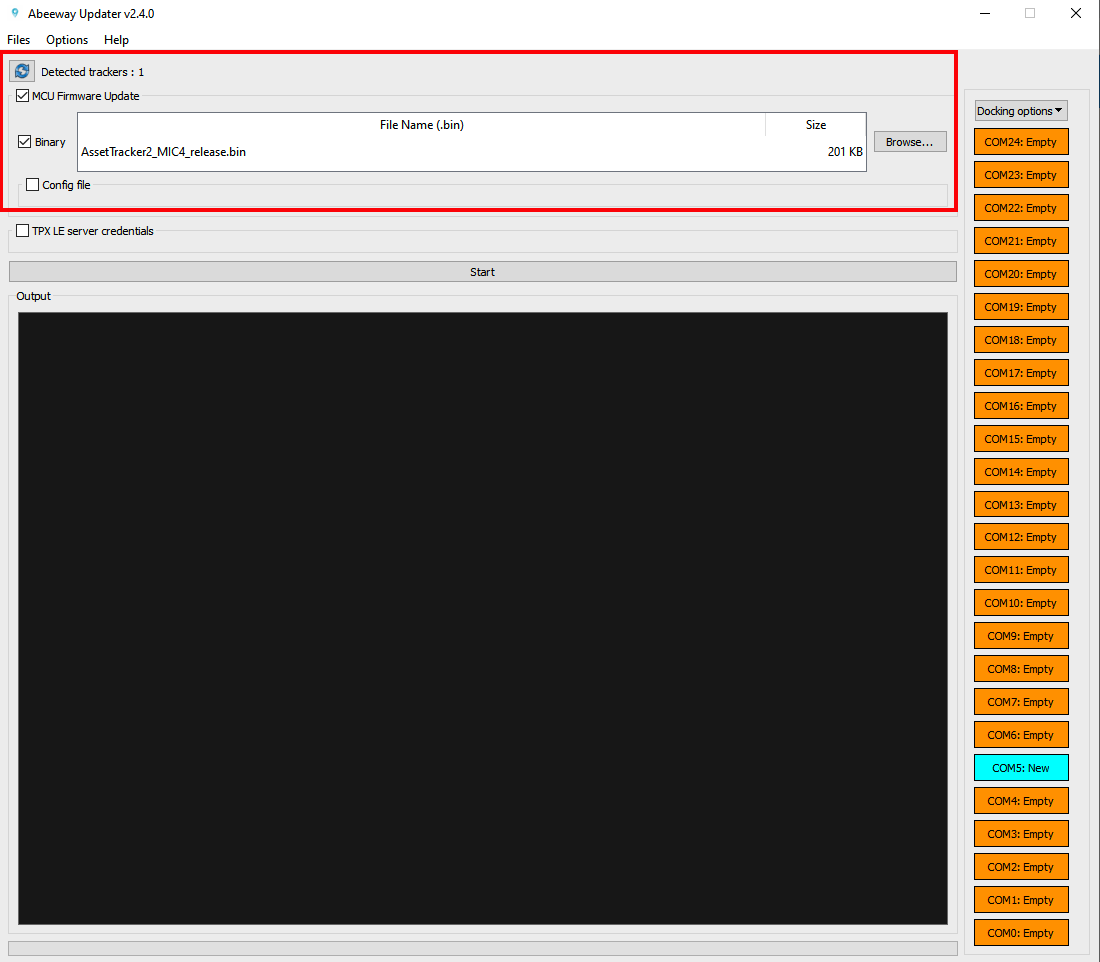
If you update the MCU firmware with Abeeway Updater without a configuration file, the beacon restarts with the AT2 factory default configuration. Beaconing is then disabled. Re-apply the beacon configuration afterwards (see the Beacon configuration tool).