Abeeway Portal — User Guide
This guide covers Abeeway Portal v1.0.0 (Free). See the Release Notes for what changes from one version to the next.
I. Introduction & Context
I.1. About this guide
This guide walks you through the process of getting started with the Abeeway Portal, from your first sign-in to configuring, activating and monitoring your devices.
It provides clear, step-by-step instructions to help you get your trackers up and running and make the most of their capabilities.
I.2. What is the Abeeway portal
The Abeeway portal is the website where your company manages its Abeeway trackers. In this version (Free), it covers the devices, the users of each organization and the configurations of the trackers, loaded with a USB cable or Bluetooth. It has four parts:
- Devices: the list of your trackers.
- Configuration Manager (in Tools): choose the settings of your trackers and send them to a tracker, with a USB cable or Bluetooth.
- Tools: the other Abeeway tools (BeeHive, BeeQueen).
- Settings: your users and their profiles.
Everything you do happens inside your organization: other customers cannot see your trackers or your configurations.
I.3. What you can do with the portal
- Register your trackers and find them in one list.
- Tell the portal which tracker versions (firmwares) you use.
- Choose a ready-made configuration and load it onto a tracker, with a USB cable or Bluetooth.
- Check that a tracker runs the right configuration.
- Save the settings of a tracker as a new configuration, to reuse them on other trackers.
- Manage the users of your organization.
The portal will connect to the LoRaWAN and LTE networks, show the data sent by each device, and add KPIs and monitoring.
I.4. How it works
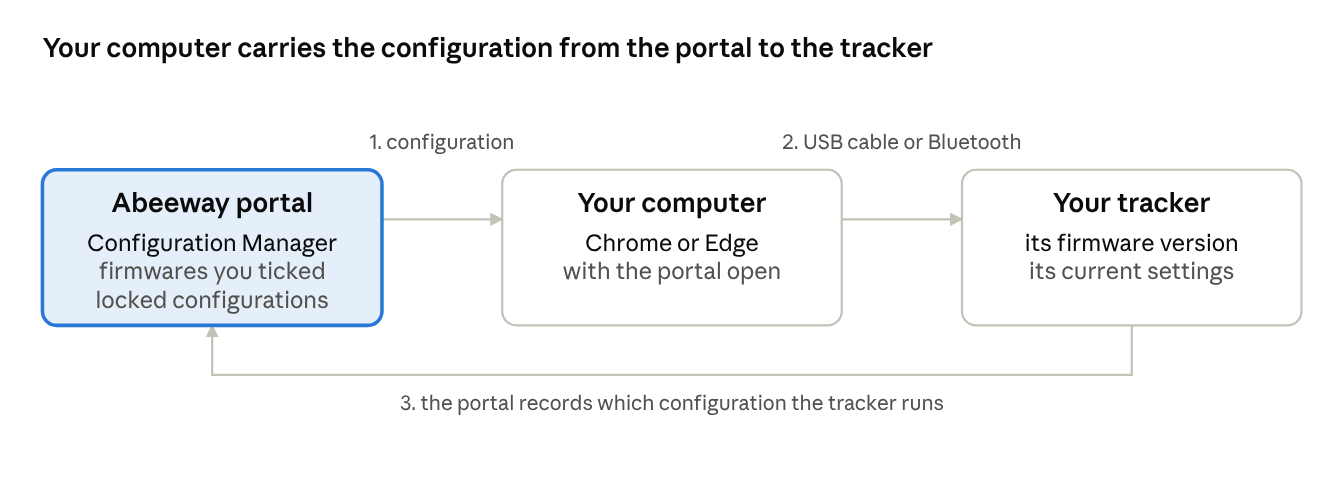
The portal never talks to the tracker directly: your browser does it, through the USB cable or Bluetooth. After a load, the portal records which configuration the tracker runs.
The usual path:
- Tick your tracker's firmware in Firmwares.
- Choose a configuration in Configurations.
- Connect the tracker and load the configuration.
The chapters of this guide follow this order.
Five ideas are enough to use the portal:
- Your tracker has a software version (its firmware). The portal reads it by itself when you connect the tracker.
- The portal only shows what you selected. First tick your tracker's firmware on the Firmwares page. Until you do, no configuration appears for this tracker and it cannot be loaded.
- A configuration is a set of settings made for one software version. The portal only shows the configurations that fit your tracker.
- A closed padlock 🔒 means "finished". Only locked configurations can be loaded onto a tracker. An open padlock 🔓 means the configuration is still being prepared.
- The portal remembers which configuration is on which tracker. It records it automatically when you load a configuration. Later, the Check for configuration button compares the tracker with what the portal remembers, using a fingerprint of all its settings.
In the Configurations list, the Tags column can show a version such as v1.5.0.0. When two configurations look alike, take the most recent version.
I.5. Users and access
- The first time you sign in, you create your organization: your company's space in the portal (II.3).
- What you can see depends on the rights of your account. If Configuration manager is missing from the Tools menu, or if its lists stay empty, your account does not have access to configurations yet: contact Abeeway support.
- An administrator of your organization manages its users in Settings (VIII).
II. Getting Started
II.1. What you need
- An account on the Abeeway portal (email address and password).
- Your tracker, charged.
- A computer with Google Chrome or Microsoft Edge. Other browsers (Firefox, Safari) cannot talk to the tracker.
- One way to connect to the tracker:
- a USB cable (USB micro-B on the tracker side), called "Serial" in this guide;
- or Bluetooth on the computer, called "BLE" in this guide.
Keep the tracker less than 1 meter from the computer during the whole procedure.
II.2. Sign in
Open the browser, go to the portal address you were given, enter your email and password, then click Sign in.
If you are sent back to the sign-in page again and again, close all portal tabs, open a new one and sign in once more.
II.3. Create your organization
The first time, the portal asks you to create your organization: click Register a new organization and type the name of your company. Your organization is your own space: the trackers you add are yours, and other customers cannot see them.
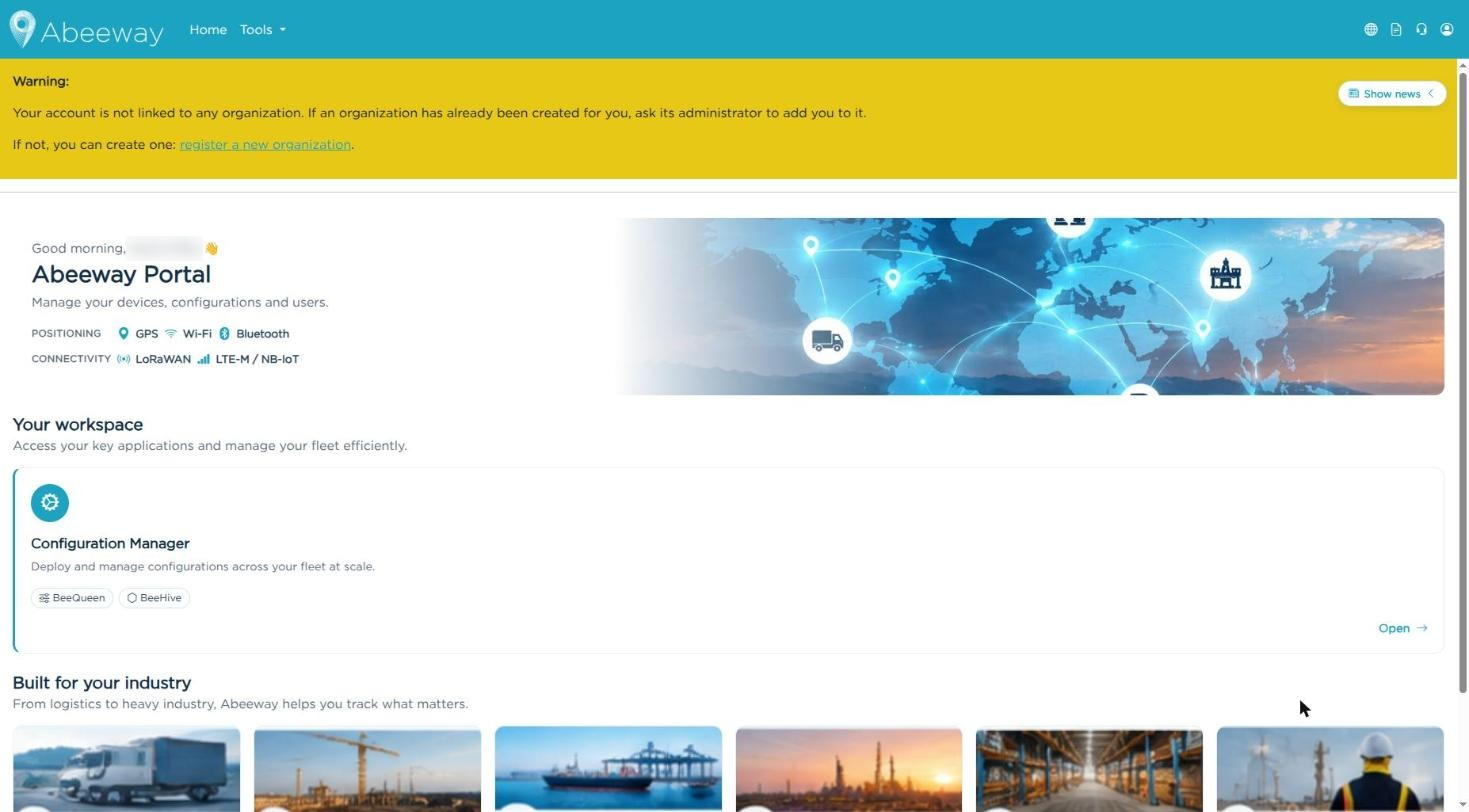
Figure 1: Account without an organization: click "register a new organization"
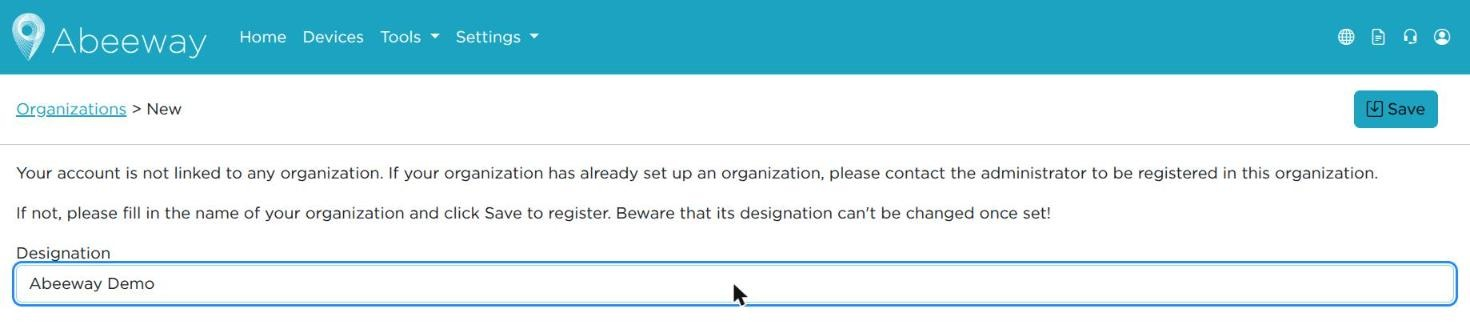
Figure 2: New organization: type the name, then click Save
If the name is refused, choose another one.
After Save, the portal confirms the creation and logs you out after a few seconds (or click Log out now). Sign in again to open your organization.

Figure 3: Organization created: you are logged out after a few seconds
II.4. Navigation
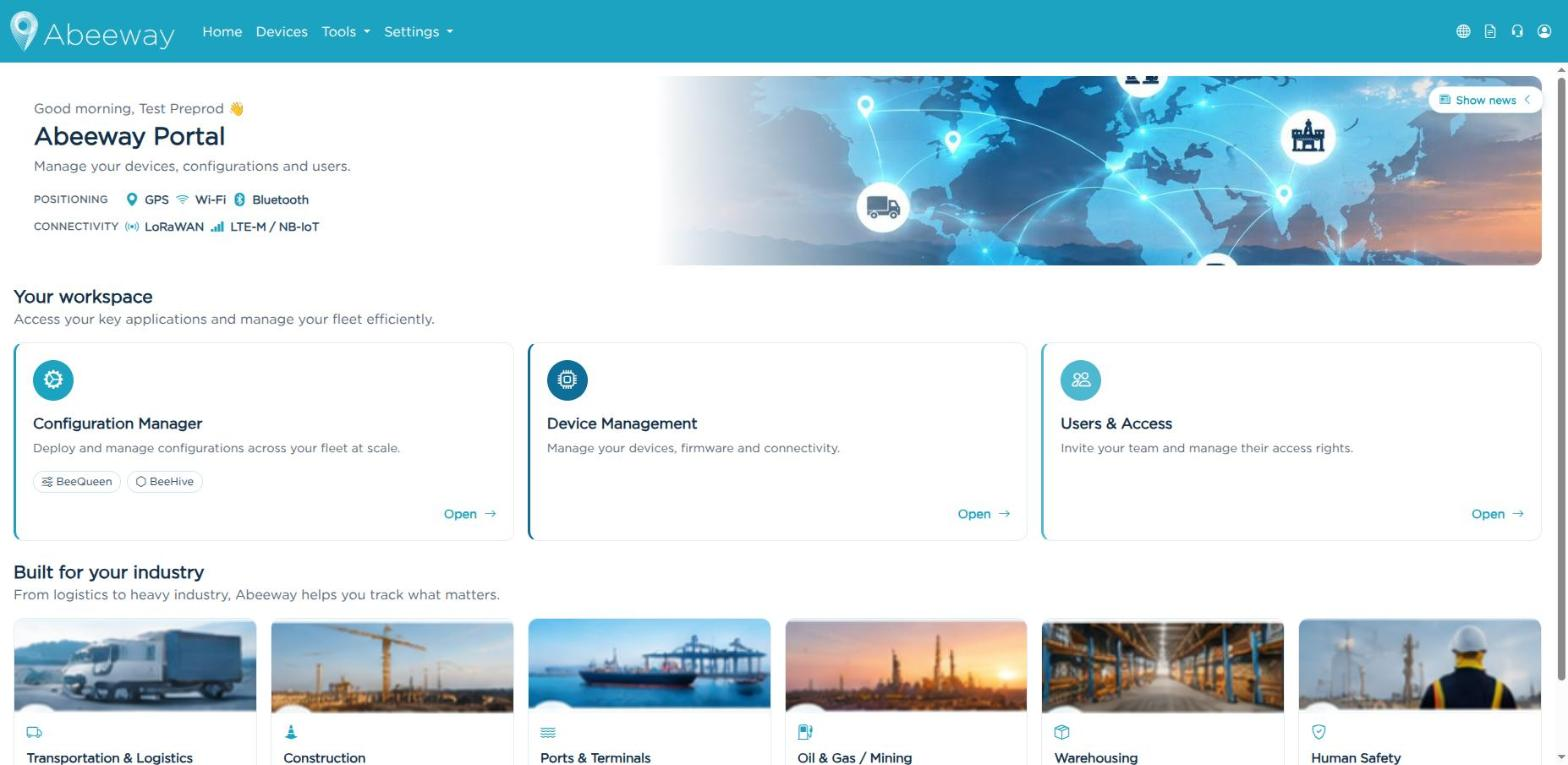
Figure 4: Portal home page
The top menu gives access to:
- Home: the home page.
- Devices: your trackers.
- Tools: the Configuration Manager and the other tools.
- Settings: your users and profiles.
At the top right:

Figure 5: Header links
- Globe: the Abeeway website.
- Document: the documentation (docs.abeeway.io).
- Headset: Abeeway support (support.abeeway.com).
- Person: your email, your organization and Logout. You can switch organization if there are several.
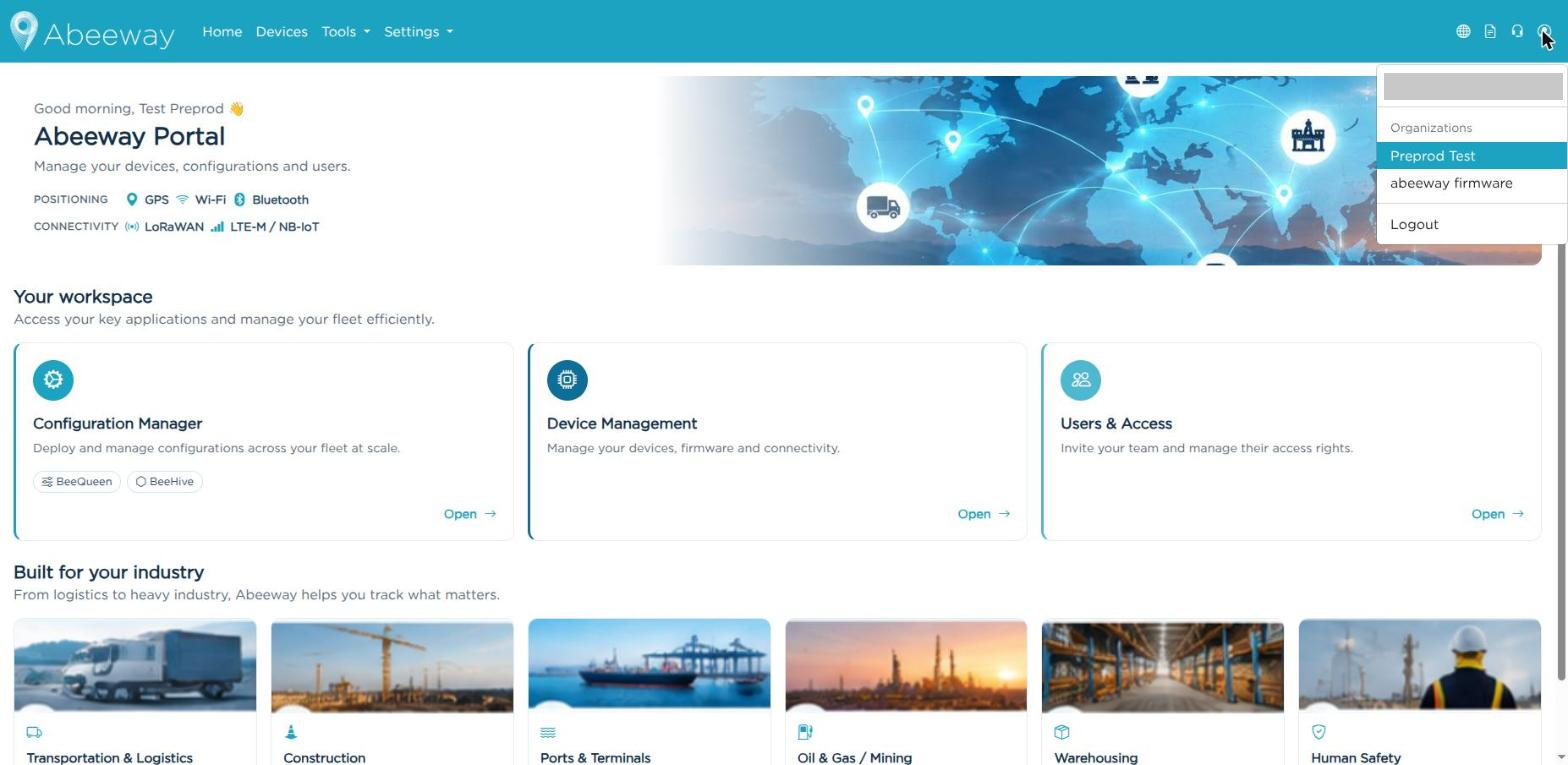
Figure 6: User menu
III. Register a tracker
Click Devices in the top menu to see the trackers of your organization.
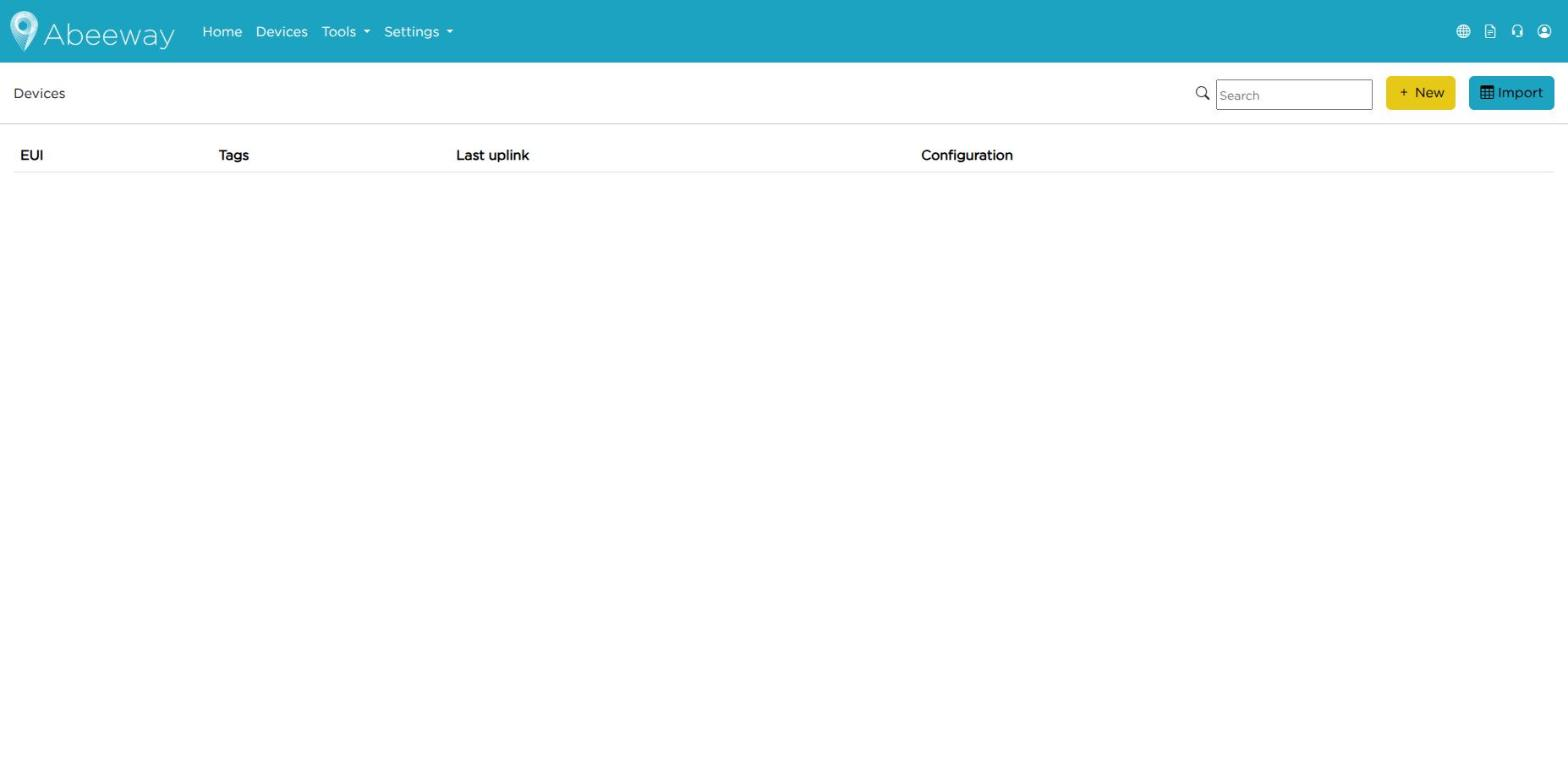
Figure 7: Devices page
To add a tracker, click + New, then fill in the form:
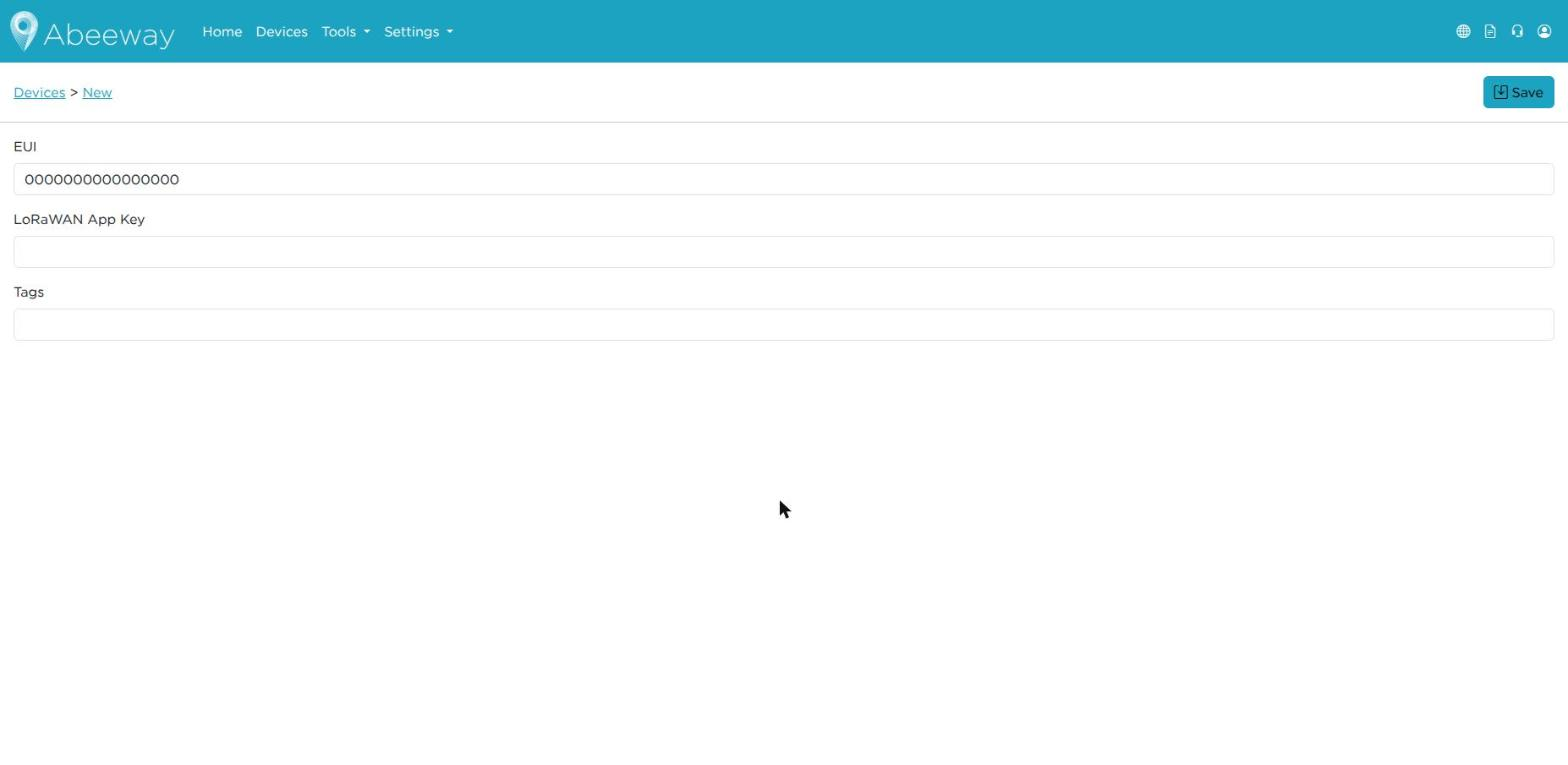
Figure 8: Add a device
- EUI: the 16 hexadecimal characters (0-9 and A-F) of your tracker, without spaces.
- LoRaWAN App Key: leave it empty unless your network operator gave you one.
- Tags: optional, a word to recognize the tracker (for example
truck-12). Tags also link the tracker to its configuration: a configuration with the same tag is the one meant for this tracker. When you load a configuration, the portal adds this tag (configID-<number>) to the tracker by itself.
Then click Save. The tracker appears in the Devices list.
IV. The Configuration Manager
IV.1. Open the Configuration Manager
In the top menu, click Tools, then Configuration manager.
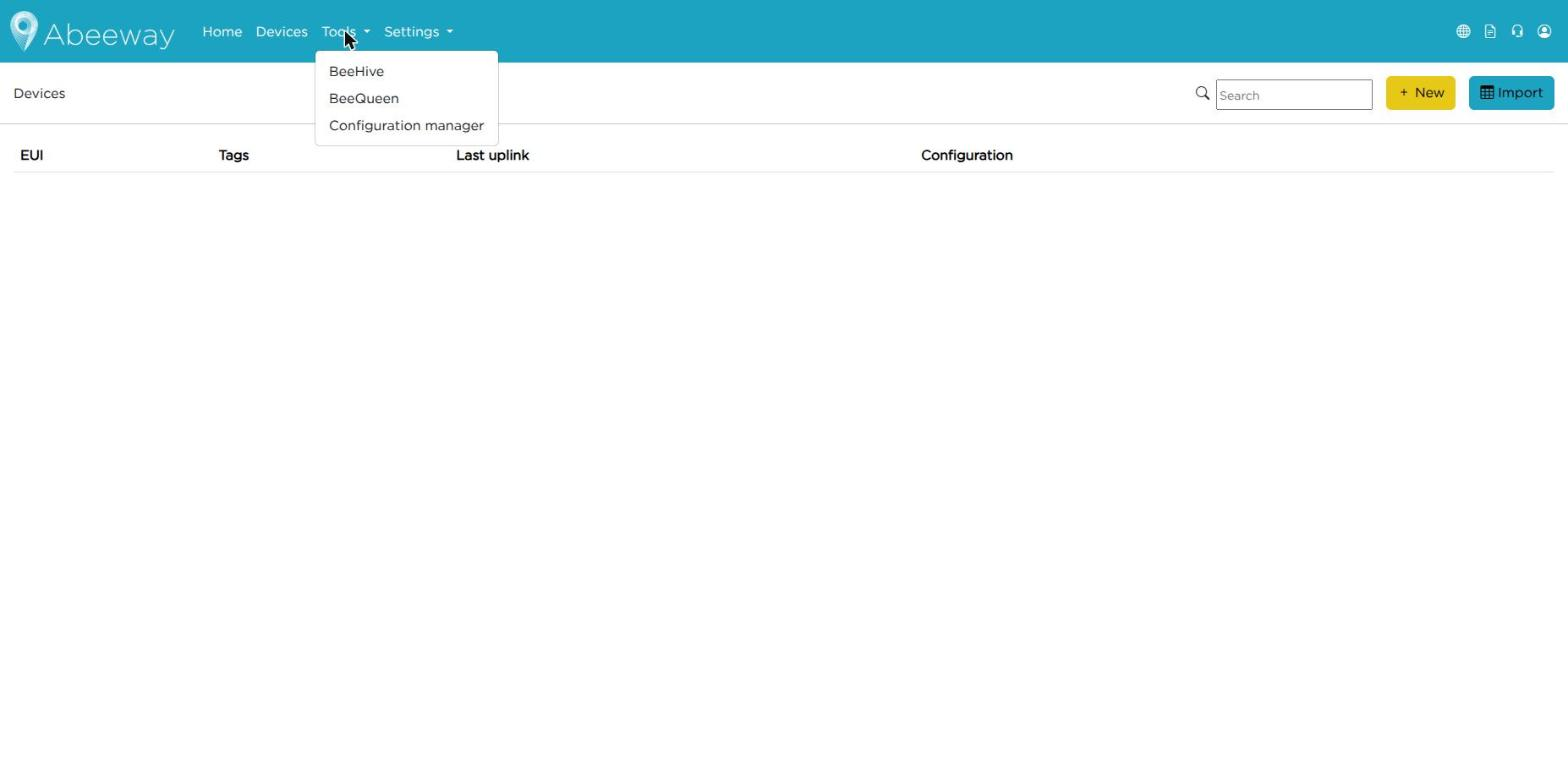
Figure 9: Tools menu
If Configuration manager is missing from the Tools menu, or if the lists stay empty, your account does not have access to configurations yet: contact Abeeway support.
IV.2. Home page
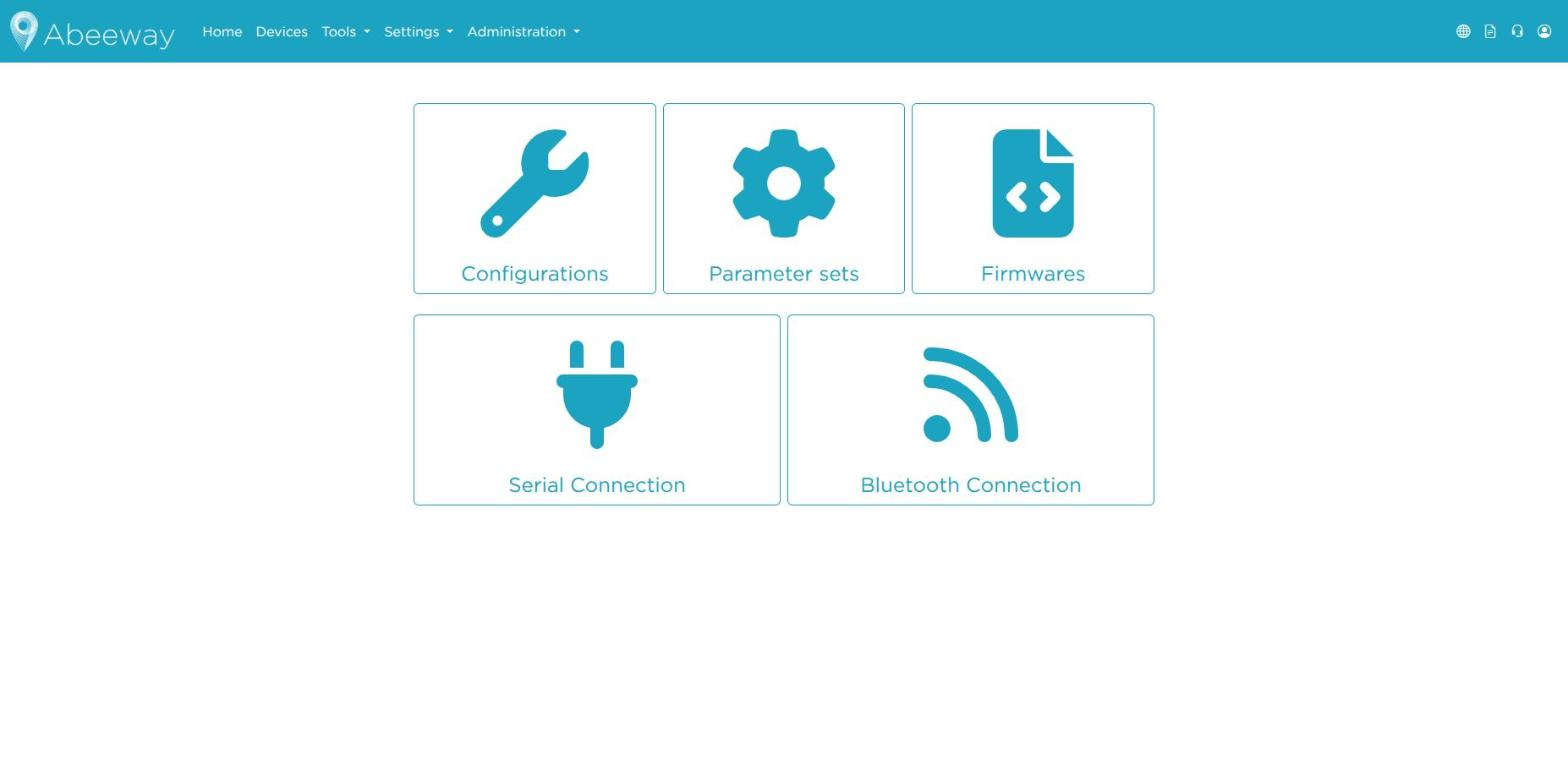
Figure 10: Configuration Manager home page
- Configurations: see the configurations available for your trackers, and which ones are ready (closed padlock).
- Parameter sets: it defines all configurable parameters of a tracker model (hardware) and its firmware versions.
- Firmwares: tell the portal which tracker versions you use. Do it first: until you do, no configuration appears for your tracker.
- Serial Connection: connect a tracker with a USB cable to load or check a configuration.
- Bluetooth Connection: same as Serial Connection, over Bluetooth.
The usual order: Firmwares, then Configurations, then Serial or Bluetooth Connection.
IV.3. Select the firmware you use
The trackers are grouped by model (for example "Compact Tracker"), with their software versions underneath.
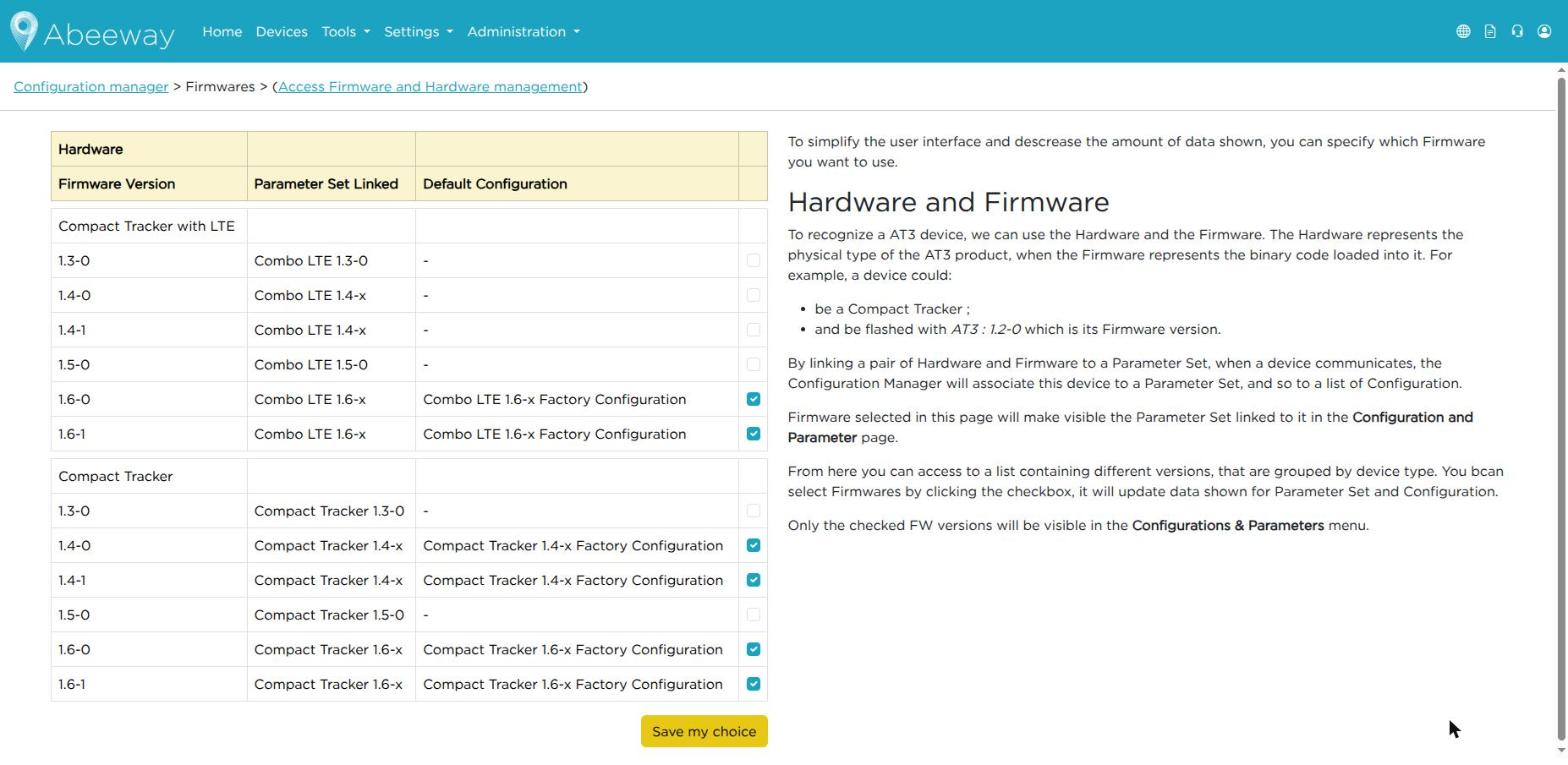
Figure 11: Firmwares page
- Tick the version(s) of your trackers. Not sure? Tick all the versions of your tracker model: it does no harm.
- Click Save my choice.
Do this before any other task (loading, checking or saving a configuration). The Configurations page then shows the configurations of the ticked versions, and the Serial and Bluetooth pages accept trackers of these versions. All your trackers of these versions benefit from it.
When you receive a tracker with a new software version, come back here and tick it first.
IV.4. See the configurations
The configurations of the versions you selected are listed. Only the ones with a closed padlock can be loaded onto a tracker.
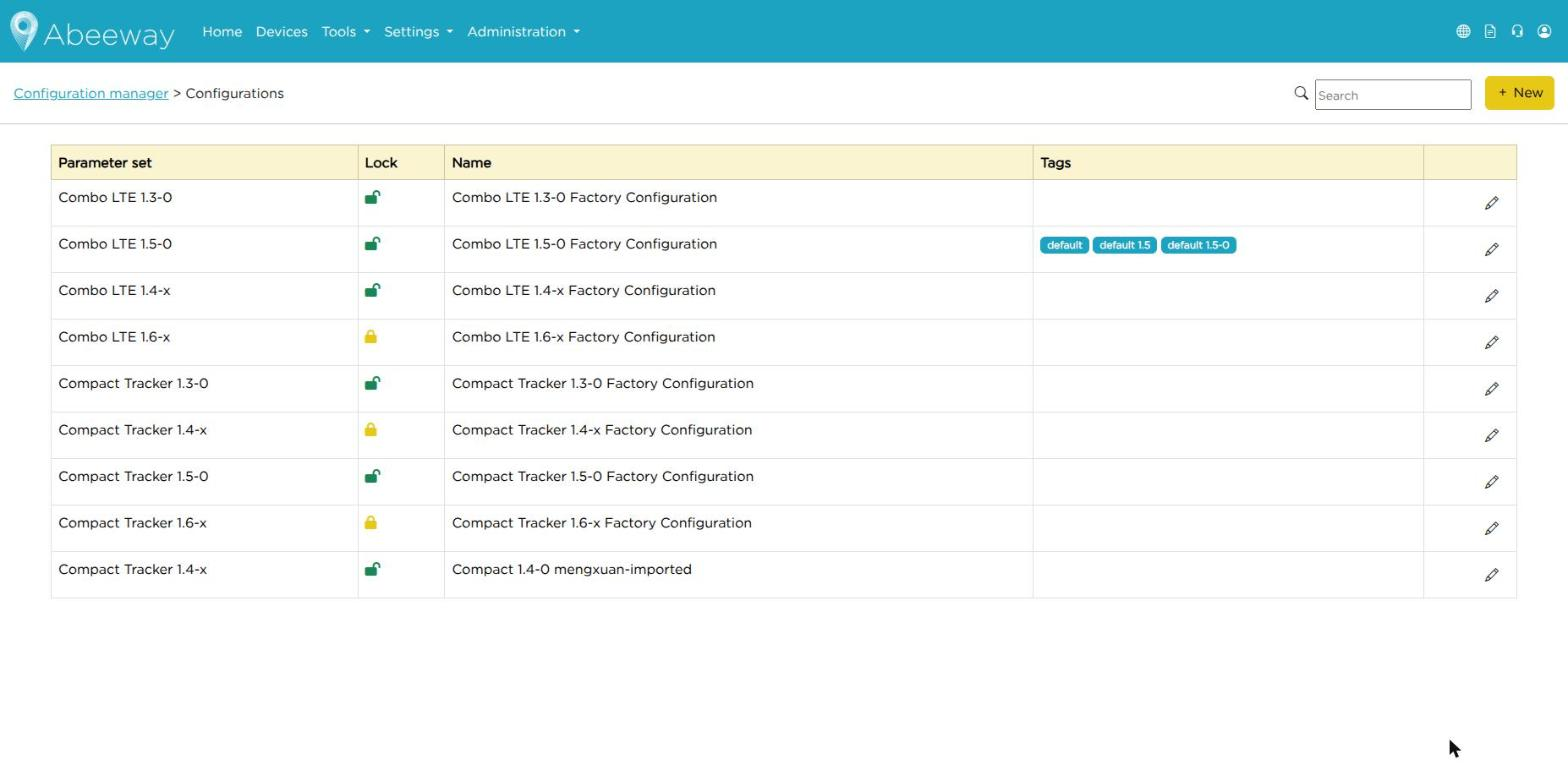
Figure 12: Configurations page
IV.5. Import a configuration file
Use this to fill a new configuration from a file, for example a file downloaded from another configuration.
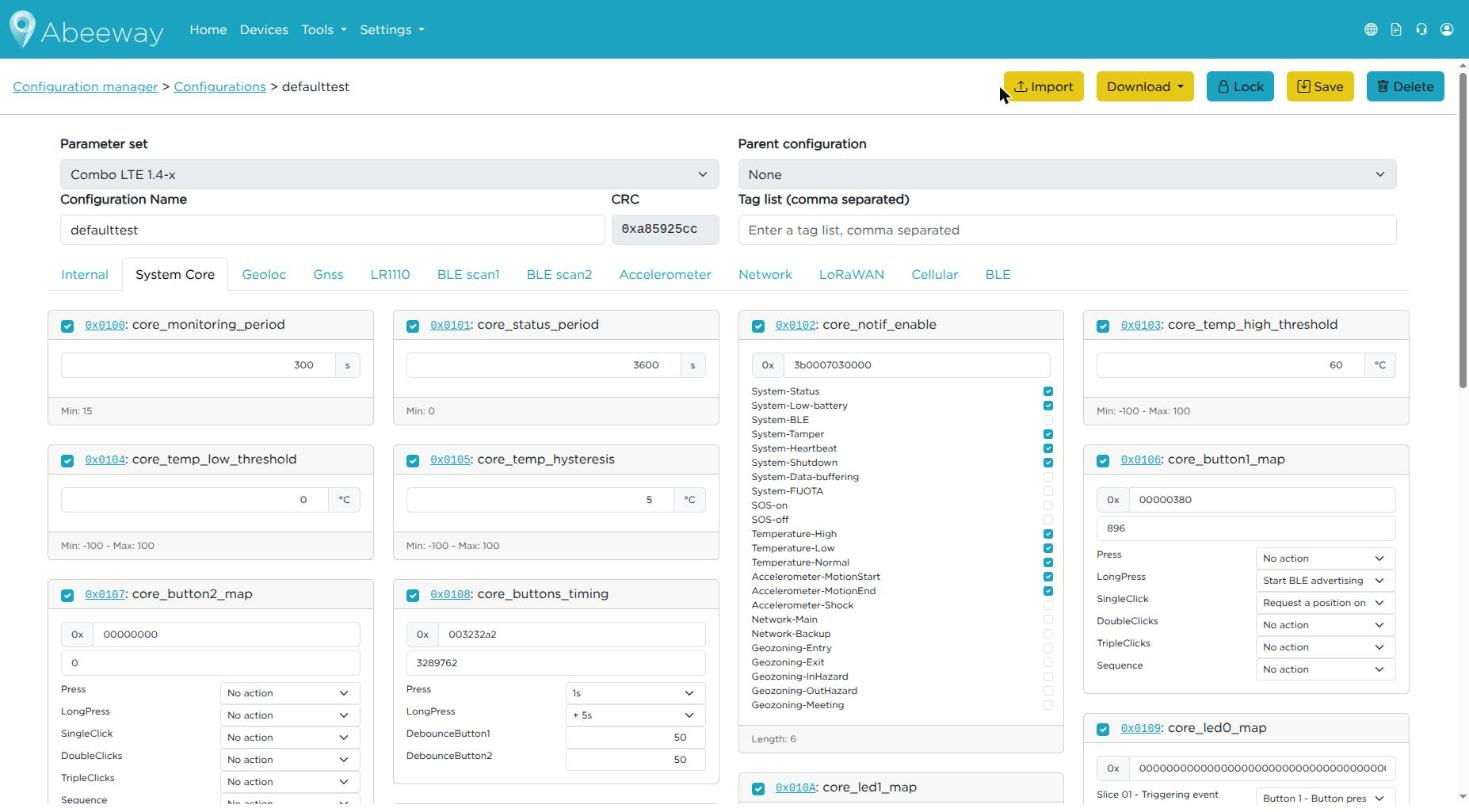
Figure 13: Configuration page: the Import button (open padlock only)
- Get the file: on the configuration you want to copy, click Download, then Whole configuration file.
- Create a new configuration for the same tracker version with + New, then Save. It starts empty, with an open padlock.
- Open it, click Import and choose the file (
.confor.txt). - The page reloads with the imported settings.
The Import button only appears on a configuration that is not locked. The import is refused when the configuration already has settings, or when the file is a "delta" file (Download → Configuration file delta from parent or from base configuration): use the whole configuration file.
V. Load a configuration with a USB cable (Serial)
The most reliable method.
The firmware of your tracker is ticked in Firmwares (IV.3). Otherwise its configurations are not listed.
Connect
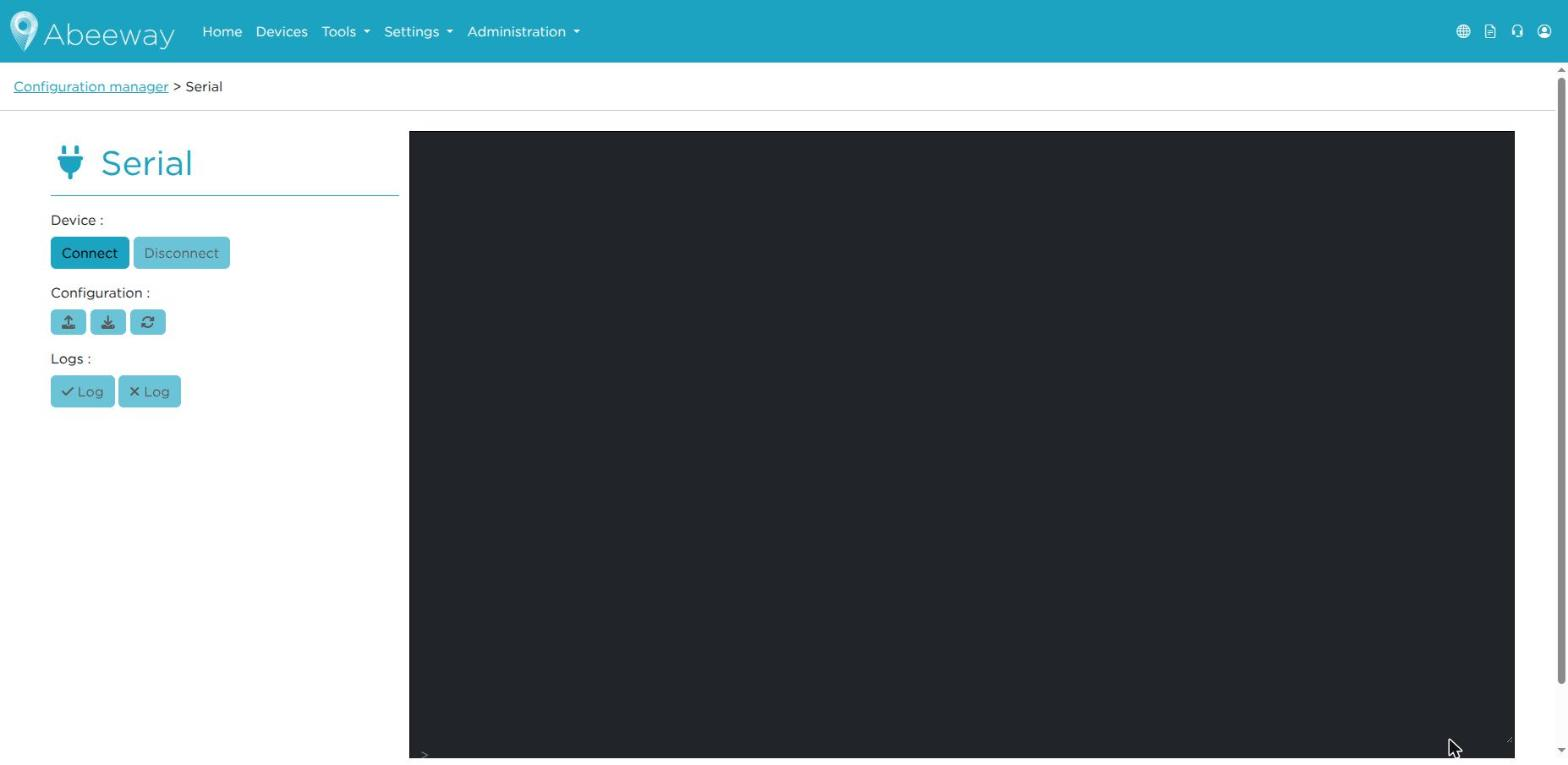
Figure 14: Serial Connection page
- Plug the tracker into the computer with the USB cable.
- Close any other program that could use the tracker (terminal program, another tab with the tool).
- On the Configuration Manager home page, click Serial Connection.
- Click Connect. The browser opens a window listing the connected devices: pick your tracker (it appears as STM32 Virtual ComPort), then click Connect in that window.
- After a few seconds, the tracker's EUI appears in a green badge under the page title.
If the console says the device is waiting for a password, type the tracker's Super User Password at the bottom of the console, press Enter, then click Connect again. No password? Ask Abeeway support.
Load the configuration
- In the Configuration row, click the download icon (Load a configuration in the device).
- The Device type is filled in automatically: do not change it.
- In Configuration, choose the configuration you want (closed padlock only).
- Click Load the configuration and wait without unplugging the cable (one or two minutes).
- The message Loading configuration success! confirms it is done.
To finish, click Disconnect, then unplug the cable.
VI. Load a configuration with Bluetooth (BLE)
Same steps as chapter V, with two connection buttons instead of one.
The firmware of your tracker is ticked in Firmwares (IV.3).
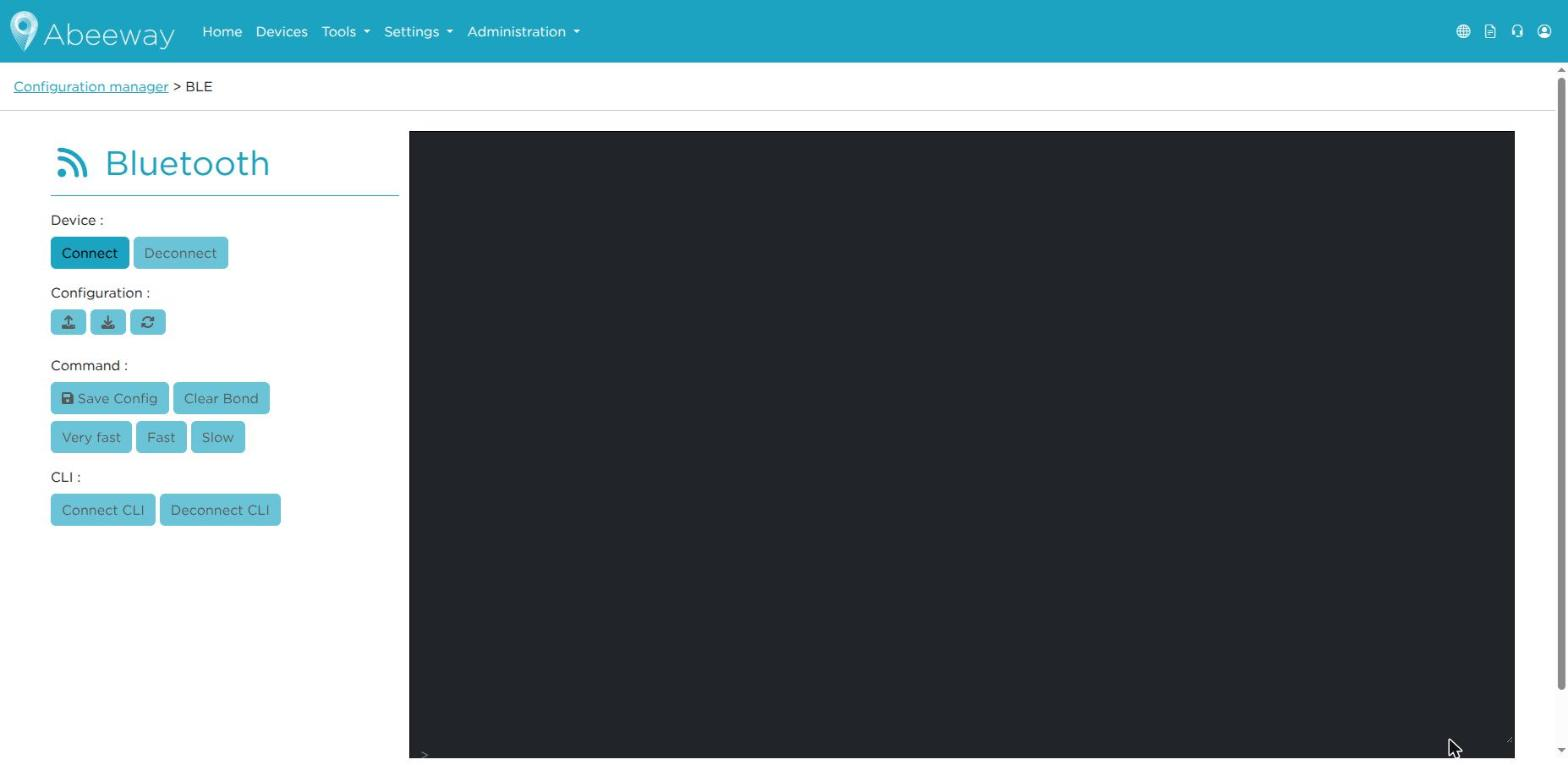
Figure 15: Bluetooth Connection page
- Turn on Bluetooth on the computer and keep the tracker less than 1 meter away. If it does not appear in the list, wake it up as described in its user manual.
- On the Configuration Manager home page, click Bluetooth Connection.
- Click Connect: the browser opens a window, pick your tracker, then Pair (or Connect).
- Click Connect CLI. The tracker's EUI appears in a green badge.
- Load the configuration as in chapter V (Load the configuration).
- The message Loading the configuration in the device is successful! confirms it is done.
- To finish, click Deconnect CLI, then Deconnect.
If the connection fails every time, click Clear Bond, then start again from step 3.
VII. Check a tracker and save its settings
The firmware of your tracker is ticked in Firmwares (IV.3).
VII.1. Check for configuration
While connected (Serial or Bluetooth), click the round arrows icon (Check for configuration) in the Configuration row:
- Configuration is up to date (green): the tracker runs the right configuration.
- Configuration is not up to date, download the configuration? (orange): click the message to load the right configuration again.
The console empties itself after a check: this is normal.
VII.2. Save the tracker's settings as a new configuration
Use this when a tracker already has the settings you want to reuse on other trackers.
- Connect to the tracker (chapter V or VI).
- In the Configuration row, click the upload icon (Save device configuration in DataBase).
- Type a name, then click Create the configuration.
Nothing is changed on the tracker. The new configuration starts unlocked (open padlock) and must be locked before it can be loaded onto other trackers.
The message Creating a new configuration from the device is successful! confirms it is done. If the creation fails, a red message gives the reason and nothing is saved: no empty configuration is left.
VIII. Administration & Settings
The Settings menu shows only the entries your account has the rights for:
- Users: the users of your organization.
- User profiles: the profiles that give users their rights.
Abeeway administrators also see an Administration menu with Organizations.
An entry is missing? Your account does not have the right for it: ask the administrator of your organization, or Abeeway support.
IX. Troubleshooting
| What you see | What to do |
|---|---|
| Could not open the serial port | Another program uses the tracker. Close it, then click Connect again. |
| Device is waiting for a password | Type the tracker's Super User Password at the bottom of the console, press Enter, then click Connect again. |
| This organization has not claimed the device's firmware yet | Select your tracker version in Firmwares and click Save my choice (IV.3), then reconnect. |
| The Device type stays empty | Same as the line above. |
| The Configuration list is empty | No locked configuration exists for your tracker yet, or IV.3 is not done. Contact support if IV.3 is done. |
| Impossible to load a configuration that isn't locked | Choose a configuration with a closed padlock. |
| This configuration's parameter set doesn't match the device's actual firmware | The configuration is made for another tracker version: choose another one. |
| This configuration is empty | Choose another configuration. |
| All values were written, but the device did not confirm saving (Bluetooth only) | Move the tracker closer and load the configuration again. |
| Import: configuration already contains parameters | Import only works on a new, empty configuration: create a new one (IV.5) and import the file there. |
| Import: Configuration file contains a PARENT line | The file is a delta file. Download the Whole configuration file instead, then import it. |
| Import refused: the file is malformed (or unknown parameter) | The file is not a configuration file of the portal, or it was made for another tracker version. Check the line given in the message, or contact Abeeway support. |
| Could not import the device's configuration: unknown parameter … (USB cable) | The tracker has a setting that the portal does not know for this firmware version. Nothing was saved. Contact Abeeway support with the tracker EUI and the full message. |
| Creating the configuration failed (on parameter 0x…). Nothing was saved. (Bluetooth) | Move the tracker closer and try again. If it fails again, contact Abeeway support with the tracker EUI and the message. |
| Error : no registered firmware matches this device's hardware/version/config | Contact Abeeway support with the tracker EUI. |
| Yellow bar "An unhandled error has occurred" | Reload the page (F5), then start the step again. |
X. Reference
X.1. Glossary
| Word | Meaning |
|---|---|
| Tracker / device | Your Abeeway box that sends its position. |
| EUI | The unique 16-character hexadecimal number of the tracker, printed on its label (for example 20635FF20000AFE6). |
| Organization | Your company's space in the portal. |
| Firmware | The software inside the tracker. Each version needs its own configurations. |
| Configuration | The set of settings of a tracker (how often it reports, when it sleeps...). |
| Locked configuration | A finished configuration (closed padlock), ready to be loaded onto a tracker. |
| Tag | A word attached to a tracker or a configuration. The same tag on both links them. |
| Serial | Connection to the tracker with a USB cable. |
| BLE | Bluetooth Low Energy: connection to the tracker without a cable. |
X.2. Support
support.abeeway.com. Give your tracker EUI and the exact message you see.